Integrate with GitHub Enterprise Managed Users
Support level: Community
What is GitHub Enterprise Managed Users
With Enterprise Managed Users, you manage the lifecycle and authentication of your users on GitHub from an external identity management system, or IdP.
This guide configures authentik as the SAML identity provider and SCIM provider for GitHub Enterprise Cloud with Enterprise Managed Users (EMU). It applies to EMU enterprises hosted on GitHub.com and EMU enterprises with data residency on GHE.com.
Preparation
The following placeholders are used in this guide:
github.com/enterprises/foois your GitHub.com EMU enterprise, wherefoois the name of your enterprise.foo.ghe.comis your GHE.com EMU enterprise, wherefoois the name of your enterprise.authentik.companyis the FQDN of the authentik installation.GitHub Usersis an application entitlement used for standard GitHub users.GitHub Adminsis an application entitlement used for GitHub enterprise administrators.
This documentation lists only the settings that you need to change from their default values. Be aware that any changes other than those explicitly mentioned in this guide could cause issues accessing your application.
SCIM must be configured for this integration. GitHub matches the SAML identity to the SCIM identity by comparing the SAML NameID value with the SCIM userName value. The mappings below use the github_emu_username user attribute when it exists, and fall back to the authentik username.
Use the values for your EMU deployment when configuring authentik:
- GitHub.com
- GHE.com
| Setting | Value |
|---|---|
| ACS URL | https://github.com/enterprises/foo/saml/consume |
| Audience | https://github.com/enterprises/foo |
| Issuer | https://github.com/enterprises/foo |
| SCIM URL | https://api.github.com/scim/v2/enterprises/foo |
| Setting | Value |
|---|---|
| ACS URL | https://foo.ghe.com/enterprises/foo/saml/consume |
| Audience | https://foo.ghe.com/enterprises/foo |
| Issuer | https://foo.ghe.com/enterprises/foo |
| SCIM URL | https://api.foo.ghe.com/scim/v2/enterprises/foo |
authentik configuration
To support the integration of GitHub Enterprise EMU with authentik, you need to create property mappings, an application/provider pair, application entitlements, and a SCIM provider.
Create property mappings in authentik
-
Log in to authentik as an administrator and open the authentik Admin interface.
-
Navigate to Customization > Property Mappings and click Create.
-
Create the following SAML Provider Property Mappings:
-
Name:
GitHub EMU username-
SAML Attribute Name:
http://schemas.goauthentik.io/2021/02/saml/username -
Expression:
return request.user.attributes.get("github_emu_username", request.user.username)
-
-
Name:
GitHub EMU full name-
SAML Attribute Name:
full_name -
Expression:
return request.user.name
-
-
Name:
GitHub EMU emails-
SAML Attribute Name:
emails -
Expression:
if request.user.email:yield request.user.email
-
-
-
Create a SCIM Provider Mapping with the following settings:
-
Name:
GitHub EMU user -
Expression:
The supported
rolesvalues are documented in GitHub Enterprise Cloud's SCIM API documentation.username = request.user.attributes.get("github_emu_username", request.user.username)formatted = request.user.name or usernamegiven_name = formattedfamily_name = " "if " " in formatted:given_name, _, family_name = formatted.partition(" ")emails = []if request.user.email:emails.append({"value": request.user.email,"type": "work","primary": True,})entitlement_names = {entitlement.namefor entitlement in request.user.app_entitlements(provider.application)}roles = []if "GitHub Admins" in entitlement_names:roles.append({"value": "enterprise_owner", "primary": True})elif "GitHub Users" in entitlement_names:roles.append({"value": "user", "primary": True})return {"userName": username,"externalId": str(request.user.uid),"name": {"formatted": formatted,"givenName": given_name,"familyName": family_name,},"displayName": formatted,"active": request.user.is_active,"emails": emails,"roles": roles,}
-
Create an application and provider in authentik
-
Log in to authentik as an administrator and open the authentik Admin interface.
-
Navigate to Applications > Applications and click Create with Provider to create an application and provider pair. (Alternatively you can first create a provider separately, then create the application and connect it with the provider.)
- Application: provide a descriptive name, an optional group for the type of application, the policy engine mode, and optional UI settings.
- Choose a Provider type: select SAML Provider as the provider type.
- Configure the Provider: provide a name (or accept the auto-provided name), the authorization flow to use for this provider, and the following required configurations.
- Set ACS URL to the ACS URL for your EMU deployment.
- Set Audience to the audience value for your EMU deployment.
- Set Issuer to the issuer value for your EMU deployment.
- Set Service Provider Binding to
Post. - Under Advanced protocol settings:
- Add the
GitHub EMU full nameandGitHub EMU emailsproperty mappings. - Set NameID Property Mapping to
GitHub EMU username. - Set Default NameID Policy to
urn:oasis:names:tc:SAML:2.0:nameid-format:persistent. - Select an available Signing certificate. Download this certificate because it is required later.
- Enable Sign assertion and Sign response.
- Add the
- Configure Bindings (optional): you can create a binding (policy, group, or user) to manage the listing and access to applications on the User Dashboard. If you add the SCIM provider as a backchannel provider later, only users who can view this application are synchronized.
-
Click Submit to save the new application and provider.
Create application entitlements
- In the authentik Admin interface, open the GitHub EMU application that you created.
- Click the Application entitlements tab.
- Create two entitlements named
GitHub UsersandGitHub Admins. - Open each entitlement and bind the users or groups that should receive it.
GitHub configuration
When GitHub provisions your managed enterprise, GitHub sends an email inviting you to reset the password for the setup user. The setup user has the username foo_admin, cannot be linked with SSO, and is the emergency account that can bypass SSO requirements.
Create the SCIM token
- Log in as the setup user.
- Navigate to the personal access tokens page:
- GitHub.com:
https://github.com/settings/tokens - GHE.com:
https://foo.ghe.com/settings/tokens
- GitHub.com:
- Generate a new classic personal access token with the
scim:enterprisescope. - Copy the token. This value is used in the authentik SCIM provider.
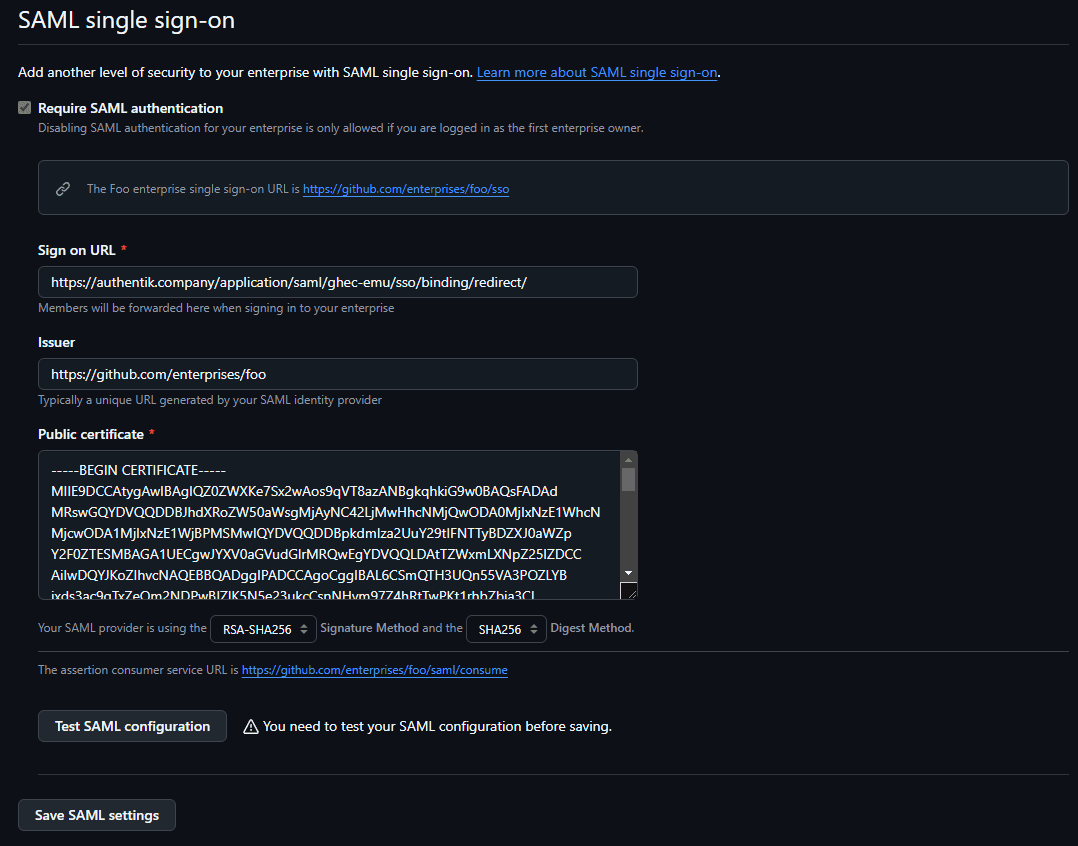
Configure SAML in GitHub
- Log in as the setup user.
- Navigate to your enterprise.
- Click Identity provider.
- Under Identity Provider, click Single sign-on configuration.
- Under Open SCIM Configuration, select Enable open SCIM configuration.
- Under SAML single sign-on, select Add SAML configuration.
- Configure the following settings:
- Sign on URL: enter the SSO URL (Redirect) from the SAML provider that you created in authentik.
- Issuer: enter the Issuer that you configured in authentik.
- Public certificate: paste the full signing certificate that you downloaded from authentik.
- Signature method and Digest method: select the methods that match the authentik SAML provider settings.
- Click Test SAML configuration.
- After the test succeeds, click Save SAML settings.
- Save the SAML recovery codes that GitHub provides.
Create a SCIM provider in authentik
- In the authentik Admin interface, navigate to Applications > Providers and click Create.
- Select SCIM Provider as the provider type and click Next.
- Configure the following settings:
- Name: provide a descriptive name.
- URL: enter the SCIM URL for your EMU deployment.
- Token: paste the GitHub personal access token that you created earlier.
- User Property Mappings: remove
authentik default SCIM Mapping: User, then add theGitHub EMU usermapping that you created earlier. - Group Property Mappings: keep
authentik default SCIM Mapping: Groupselected.
- Click Finish.
- Navigate to Applications > Applications and open the GitHub EMU application.
- Add the SCIM provider to Backchannel Providers.
- Click Update.
Configuration verification
To confirm that authentik is properly configured with GitHub Enterprise EMU, assign a test user to the GitHub Users entitlement and ensure that the user can view the application in authentik.
Open the SCIM provider and click Run sync again. After the sync completes, confirm that the user is provisioned in GitHub. Then, log in to GitHub as the test user and confirm that GitHub redirects the user to authentik for SAML authentication.